Auto-Tune does two jobs. It can polish a vocal so gently nobody notices, and it can push a voice into full robot mode on purpose. Same tool, two very different results.
This guide walks through both ends of that spectrum and everything in between, using the current Auto-Tune lineup. I'll tell you what each control actually does and how to land the sound you're after. No mystery, just the knobs.
One quick note: Antares now leans toward writing it "AutoTune" as one word, but I'll keep it hyphenated here for continuity. Same product either way.
TABLE OF CONTENTS
A quick history (and one thing everyone gets wrong)
Auto-Tune came from an unlikely place. Dr. Andy Hildebrand worked in the oil industry, where he developed an algorithm called auto-correlation that used seismic waves to map what's underground and help companies find drill sites. Then he tweaked that same math to correct the pitch of a voice.
Here's the thing people get wrong. Auto-Tune wasn't "invented in 1997." Hildebrand built and demoed it in 1996, and the commercial software released the following year, in 1997. Small correction, but terminology matters.
He later won a Technical Grammy for it, keeping company with names like Moog, Neve, Fender, and Celemony. Not bad for a guy who started out mapping oil fields.
How Auto-Tune actually works
The mechanism is simpler than most people think. Auto-Tune detects the pitch of a note and moves it to the nearest semitone in the scale you've set. That's it. That's the whole trick.
Everything else, from invisible polish to hard robotic effect, comes down to how fast it snaps that note into place. Snap it slowly and it sounds like a singer who's just having a good day. Snap it instantly and you get the sound you've heard on a thousand records. Keep that in mind, because the rest of this post is really about controlling speed and knowing when to get out of the way.
The current Auto-Tune lineup
Antares reorganized the whole product line in October 2025, so if you're reading an older guide that mentions Artist or Access, that info is out of date. Those two versions were discontinued. There are now two main options.
Auto-Tune 2026 is the streamlined, real-time version. It's built for fast, smooth correction while you track, with the same core algorithm the brand has used for years and a redesigned interface. Auto-Tune Pro 11 is the flagship, and it keeps Graph Mode for detailed, note-by-note manual work.
My honest take: if you mostly record vocals and want quick, natural results, 2026 is plenty. If you want to sit down and fix every note by hand, that's what Pro 11 is for. Most people reading this will be happy with 2026. If you're after the free route instead, we've covered some free autotune plugins worth trying too.
The controls that matter
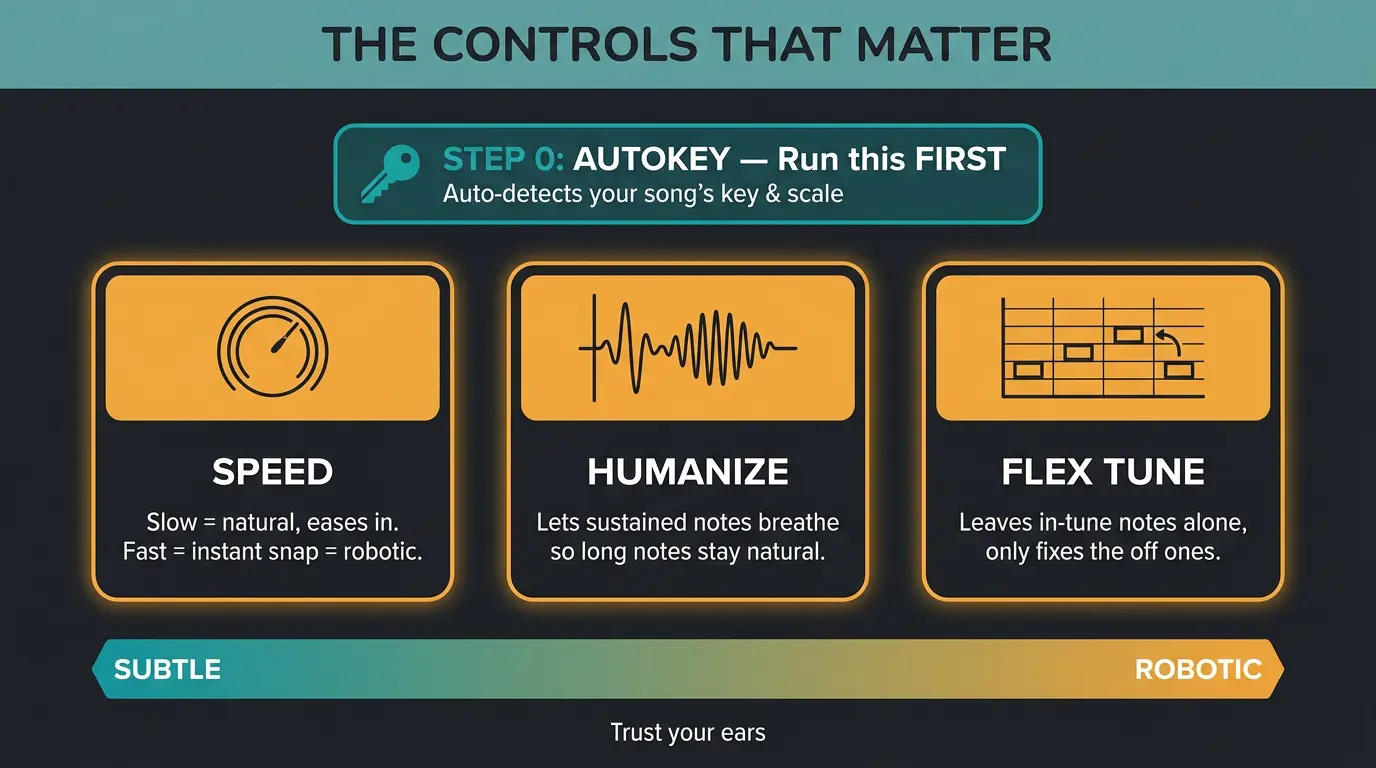
Auto-Tune 2026 boils the main controls down to three things, plus one helper. Once you understand these, you can dial in anywhere on the subtle-to-robotic spectrum.
- Speed — how fast a note snaps to the target pitch. Slow speeds sound natural because the correction eases in. Fast speeds snap instantly, which is where the robotic sound lives. A scenario where slow speed shines: a soulful lead vocal where you want the correction invisible.
- Humanize — lets sustained notes breathe so they don't get over-corrected and go stiff. Handy when a singer holds a long note and you don't want it flattened into a dead-straight line.
- Flex Tune — leaves the notes that are already in tune alone and only pulls the ones that are off. Great when a performance is mostly solid and you just want to catch the few sour spots without touching everything else.
The helper is AutoKey, which comes with 2026 and detects the key and scale of your song automatically. That means you're not guessing, and you're not correcting notes to the wrong scale. Make sure you run it first, before you touch anything else.
None of these has one "correct" setting. Trust your ears and let the vocal tell you how much it needs.
Dialing in the subtle, natural sound
This is the less-is-more section, and it's where most vocals should live. Start by running AutoKey to set the key. Then switch to Modern mode, which is built for more natural results.
Slow the Speed down so the correction eases in instead of snapping. Add some Humanize so sustained notes keep their movement, and bring in Flex Tune so you're only nudging the off notes and leaving the good ones untouched. The goal is polish, not a rebuild.
Here's the honest part: done right, nobody should be able to tell you used it. That also means the effect is easy to miss on laptop speakers. Check your work on headphones so you can actually hear what you're doing. If it sounds like a natural performance that just happens to be in tune, you nailed it.
Going full robotic (the T-Pain / Cher effect)
Now the fun one. The robotic sound isn't a separate feature or a special plugin. It's the exact same correction you just used for subtle polish, only cranked hard. No robots were harmed in the making of this effect.
Set Speed to 0 so every note snaps instantly, then turn Humanize and Flex Tune off so nothing is allowed to breathe or slip through. You can also switch to Classic mode, which brings back the older Auto-Tune 5 character that a lot of people still love for this. Between the two, you've got everything from clean modern hard-tune to that vintage flavor.
One tip: the effect works best on legato, sustained vocal lines. Long held notes give the pitch snapping room to show off. Choppy, fast phrases hide it. Push the levels, commit to the sound, and don't be shy about it.
When to reach for Graph Mode instead
Sometimes automatic correction just isn't precise enough, and that's when Pro 11's Graph Mode earns its keep. Graph Mode lets you fix pitch note by note, by hand, so you can correct a single flat syllable without touching the timing or the notes around it. It's surgical work for when a scenario really calls for it.
Pro 11 also plays nicely with modern setups. It has ARA2 integration for Logic Pro, Studio One, and Cubase, which means audio transfers between your DAW and the plugin almost instantly instead of you rendering and reloading. It also runs natively on Apple Silicon, so it's lighter on CPU. If you're the type who likes to touch every note, this is your tool.
Quick settings cheat sheet
- Run AutoKey first to set the key and scale so you're not correcting to the wrong notes.
- For natural polish, use Modern mode with a slow Speed plus Humanize and Flex Tune turned on.
- For the robotic effect, set Speed to 0 and switch to Classic mode, with Humanize and Flex Tune off.
- Reach for Graph Mode in Pro 11 when you need per-note manual control that auto correction can't give you.
Frequently Asked Questions (FAQs)
Does Auto-Tune ruin a vocal?
No, not when it's used with a light hand. Slow the Speed down and use Flex Tune so it only corrects the notes that are off, and the result sounds like a natural performance. Auto-Tune only ruins a vocal when it's pushed too hard on a take that didn't need it.
Do I need Auto-Tune Pro 11 or is 2026 enough?
For most people, Auto-Tune 2026 is enough. It handles fast, smooth, real-time correction while you track and covers the subtle and robotic sounds both. Go with Pro 11 only if you want Graph Mode to fix pitch by hand, note by note.
What's the difference between Modern and Classic modes?
Modern mode aims for more natural, transparent correction, while Classic mode uses the older Auto-Tune 5 algorithm. A lot of people prefer Classic for the iconic hard-tuned effect because of its character. Use Modern for invisible polish and Classic when you want that vintage flavor.
Can I use Auto-Tune live?
Yes. Auto-Tune 2026 includes a Low Latency mode built for live performance and monitoring while tracking. It processes fast enough that you won't hear a distracting delay. Just know that lower latency trades off a little processing fidelity compared to High Quality mode.
Is Auto-Tune or Melodyne better for manual tuning?
Both are excellent for detailed manual editing, so it comes down to workflow preference. Auto-Tune Pro 11's Graph Mode is fast and tightly integrated with DAWs through ARA2. Melodyne's note-based approach some people find more visual and intuitive. Try both and trust which one feels natural to you.
Final Thoughts
Auto-Tune isn't magic and it isn't a cheat code. It's one control, speed, and a couple of helpers that decide how much of the correction shows. Once you get that, the whole subtle-to-robotic spectrum opens up and you can put a vocal anywhere on it.
Start with AutoKey, lean on Modern mode with slow Speed for natural work, and commit fully with Speed 0 and Classic mode when you want the effect. If you want to read more on the redesigned version, the folks at Production Expert covered the Auto-Tune 2026 release in detail. With that being said, the best setting is always the one your ears tell you is right.
Some of the links within this article are affiliate links. These links are from various companies such as Amazon. This means if you click on any of these links and purchase the item or service, I will receive an affiliate commission. This is at no cost to you and the money gets invested back into Audio Sorcerer LLC.