An AI assistant in your DAW is a fast first draft. That's the whole idea, and it's a good one. Tools like Ozone's Master Assistant, iZotope's assistive vocal tools, and AI mixing assistants in general can hand you a solid starting point in seconds.
Here's the honest expectation: the results are usually acceptable and rarely perfect. That's fine. That's exactly what you'd want from an assistant. The real work is what you do after it runs.
TABLE OF CONTENTS
What an AI assistant in your DAW actually does
An AI assistant listens to a slice of your track, analyzes it, and picks the processors and settings it thinks fit. It's pattern matching against a lot of music, not magic. The clearer we are about that, the better we use it.
Ozone 12's Master Assistant is the concrete example most people know. It's gotten a lot more steerable than the old black-box version. There's a Custom flow that lets you set the genre, dial in a target loudness in LUFS, and choose which modules the assistant is even allowed to touch. You can also stretch the analysis window up to 60 seconds for a more accurate read.
iZotope frames it well themselves: it's a guide, not a decision maker. Think of it as an eager studio assistant that does the donkey work so you can make the calls that matter. It's not upload-and-cross-your-fingers anymore. Features vary a bit across the different Ozone tiers, but the assistant itself is the core of the whole thing. For more on the guts of it, we wrote up how AI mastering actually works under the hood.
Treat the output as a first draft
The assistant gets you close. It does the tedious part fast. But the decisions that make a master actually translate are still yours. Low end, vocal harshness, limiting, stereo width, final loudness — those are judgment calls, and judgment is the one thing the AI can't do for you.
The strongest way to work is a hybrid one. Let the assistant get you in the ballpark, then jump into the Detailed View and adjust by hand. Sometimes you'll keep almost nothing it suggested, and that's still a win — it shaped how you approached the track and saved you the blank-page problem.
When you do adjust, less is more. Nudge what needs nudging and leave the rest alone. The temptation is to grab every knob because the plugin has them. Resist it. If a move doesn't serve the song, take it back out.
A practical Ozone AI mastering workflow
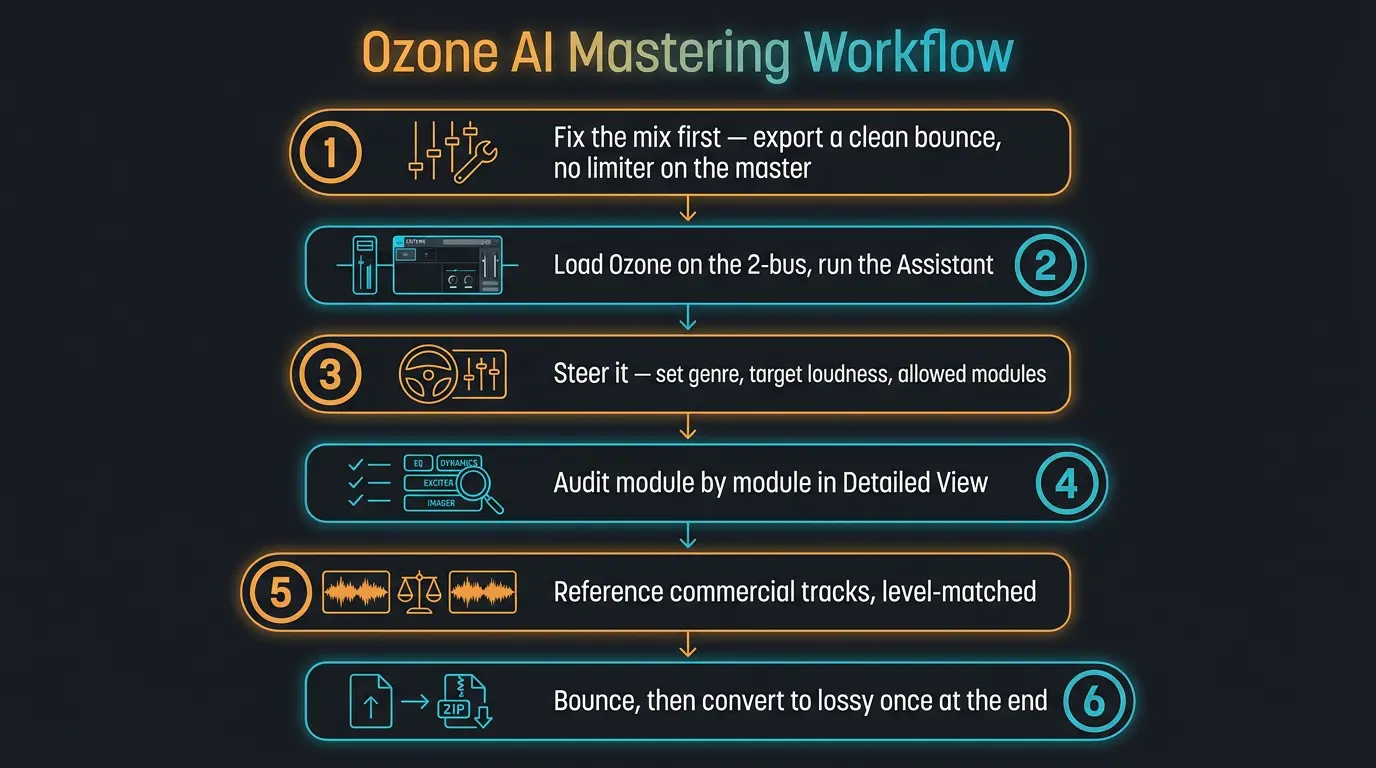
Here's the order of operations I'd actually follow. It's short on purpose.
- Fix the mix first. AI can't rescue a muddy mix — it'll just make it louder and muddier. Get the mix right, then export a clean bounce with no rough loudness limiter left on the master bus. If you're not sure your mix is ready, our guide on preparing your mix for mastering covers it.
- Load Ozone on the 2-bus and run the Assistant. Drop it on your master bus and let it analyze.
- Steer it before it runs. Use the Custom flow to set the genre, a target loudness, and which modules it's allowed to use. A little direction upfront gets you a much closer draft.
- Audit module by module in Detailed View. Go through what it chose. Remove or tweak anything that doesn't serve the song. This is where the assistant becomes your master instead of a template.
- Reference against commercial tracks, level-matched. Borrow the tonal balance of a song you love, not its loudness. Make sure you're matching levels before you compare, or the louder one always wins.
- Bounce, then convert to lossy once at the very end. Master from the high-quality export and encode to MP3 or AAC a single time.
All right, cool. That's the whole spine. Everything else is listening.
What to always check by ear
The assistant gives you numbers on a screen. Your ears give you the truth. Here's what I'm always listening for after an AI master.
Dynamics. Did it over-limit and flatten the quiet details? Ask yourself if the subtle stuff is still audible or if compression buried it.
Low end. Bass is where AI often struggles. Listen for mud, boomy resonances, or a thinness that wasn't in your mix.
Loudness versus dynamics. AI loves to push loudness. Compare the loud-to-quiet contrast against a human reference. For some genres that push is great; for others it kills the feel.
Stereo image. Put on headphones for this one. Does it feel wide and defined, or did the processing collapse things toward the center? Our stereo imaging guide goes deeper if you want it.
And the big diagnostic: if the master makes the song worse — harshness, pumping, a chorus that somehow feels smaller — go back to the mix. Toggle the bypass honestly. If clarity drops when it's on, you crushed your dynamics. There isn't always one right answer here, so trust your ears over the meters.
Your by-ear checklist before you bounce
- Dynamics preserved — the quiet details still breathe and haven't been flattened by limiting.
- Low end is clean — no new mud, boom, or thinness the AI introduced.
- Loudness isn't killing the feel — the loud-to-quiet contrast still serves the song.
- Stereo image intact on headphones — wide and defined, not collapsed to the center.
- The master doesn't make the song worse — bypass it and confirm clarity holds up.
Common mistakes that make you lose the plot
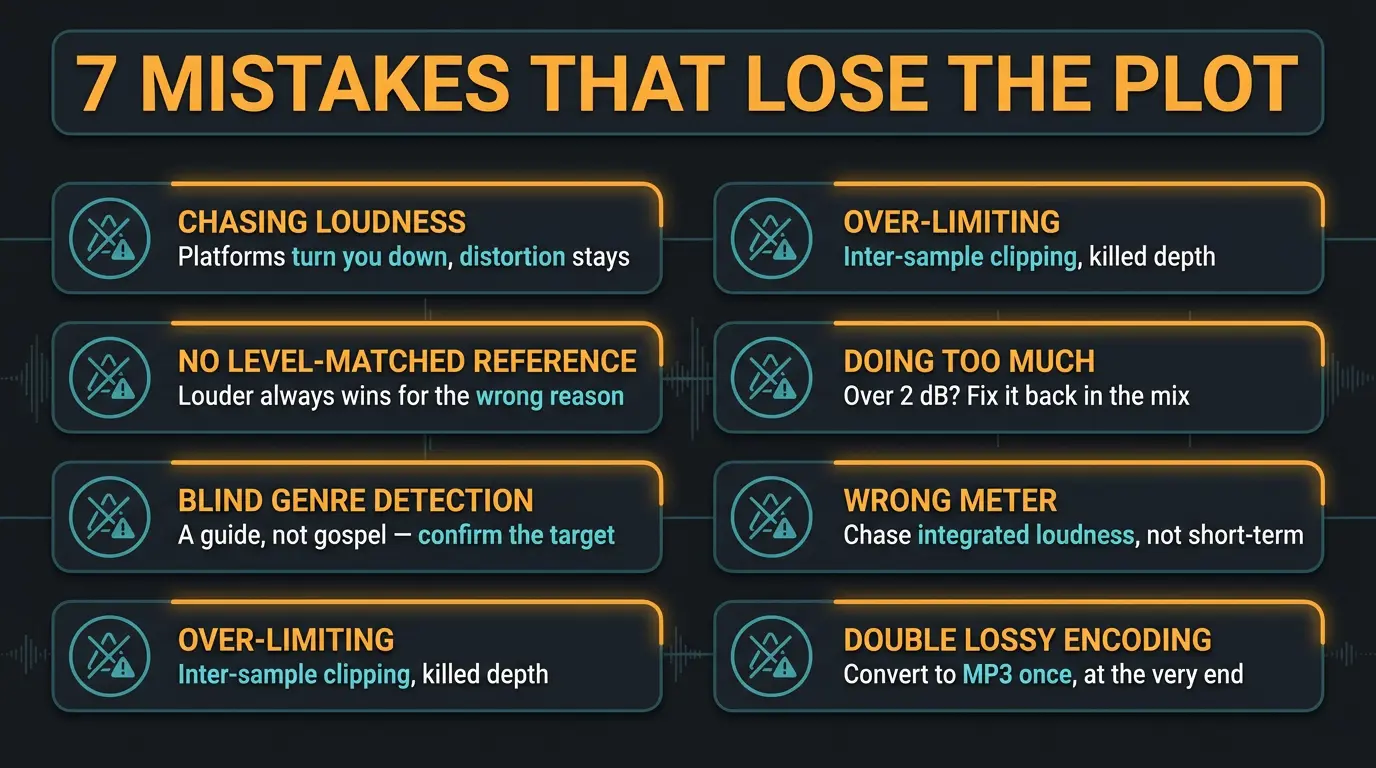
A few things trip people up over and over. Let's clear them out.
Chasing loudness past the point of return. Louder does sound better — used right, no apologies. But streaming platforms normalize playback to a target. Master far past that target and the platform simply turns you down while you keep all the distortion you added to get there. Normalization equalizes volume, not impact. So push levels with intent, then stop when it starts costing you life. If you want the full picture, read our practical guide to LUFS.
Comparing to a reference without level-matching. The louder track always sounds better to your ear, so an unmatched reference wins for the wrong reason every time. Match levels, borrow the tonal balance, and use a lossless reference — a streaming rip has altered highs that'll steer you wrong.
Trusting genre detection blindly. Auto genre is a guide, not gospel. Confirm the target actually matches what you're going for before you commit to it.
Over-limiting and inter-sample clipping. Excessive limiting is usually a crutch for a weak master, and it sneaks in inter-sample distortion on top of killing your depth.
Doing too much. Keep mastering moves subtle. Gentle low-ratio compression, small EQ moves. If you're carving more than a couple dB, the fix probably belongs back in the mix.
Metering the wrong number. Platforms normalize to integrated loudness, not short-term. Don't flatten every three-second window to the target — you'll kill the song's dynamics for no benefit.
Double lossy encoding. Master from the highest-quality export and convert to lossy once, at the very end. Re-encoding through MP3 twice bakes artifacts right in.
For more on where these tools shine and where they don't, iZotope's own release coverage over at Production Expert is worth a read, and we did our own honest look at AI mastering tools.
Frequently Asked Questions (FAQs)
Can Ozone's AI Master Assistant fully master a track by itself?
Not really — it gets you a strong first draft, not a finished master. The assistant handles the tedious setup, but the calls on low end, limiting, stereo width, and final loudness still need your ears. Treat its output as a starting point you audit and adjust.
Is Ozone AI mastering good enough for a release?
Yes, if you don't stop at the AI's first pass. Ozone's assistant can produce release-ready results once you fine-tune it in Detailed View and reference against commercial tracks. On its own it's usually acceptable but rarely perfect, so the last mile is on you.
What LUFS should I master to for streaming?
Master to serve the song, not a single magic number, but most streaming targets sit around -14 LUFS integrated. Going much louder just gets turned down on playback while you keep the distortion. Focus on how it feels next to a level-matched reference rather than chasing a target for its own sake.
Can an AI mixing assistant fix a bad mix?
No — an AI assistant can't fix fundamental mix problems, it'll just make them louder. If your mix is muddy or harsh, that'll carry straight through the master. Fix the balance and tone in the mix first, then let the assistant do its job.
Should I trust the AI's genre detection?
Treat it as a suggestion and confirm it matches your intent. Auto genre detection is a helpful starting guess, but a mismatched target is a common reason an AI master sounds off. Set the genre yourself in the Custom flow when you know what you're going for.
Final Thoughts
AI assistants in your DAW are one of the genuinely useful shortcuts we've gotten in a while. They kill the blank-page problem and get you close fast. Just remember what they are — a first draft, not a finish line.
Run the assistant, then do the part only you can do: listen, adjust, and let the song decide. Less is more, your ears are the meter that matters, and the master is still yours.
Some of the links within this article are affiliate links. These links are from various companies such as Amazon. This means if you click on any of these links and purchase the item or service, I will receive an affiliate commission. This is at no cost to you and the money gets invested back into Audio Sorcerer LLC.